Design inspiration behind the Video.js v10 skins
Published 2026-10-08.
 Sam Potts
When I started thinking about the skins for Video.js v10, I had a few ideas I’d been carrying around from my time working on Plyr. One was what I’d do if I were designing its next skin: something with a modern frosted glass background, softer shapes, and a bit more character.
Plyr’s design changed over the years. The early light skin kept the controls in a separate bar below the video. By v2, they sat over the video itself, with a gradient providing contrast. Plyr v3 refined that direction with a simpler central play button and a settings menu.
Select an item to view it in full. Moving focus into an item also reveals it.
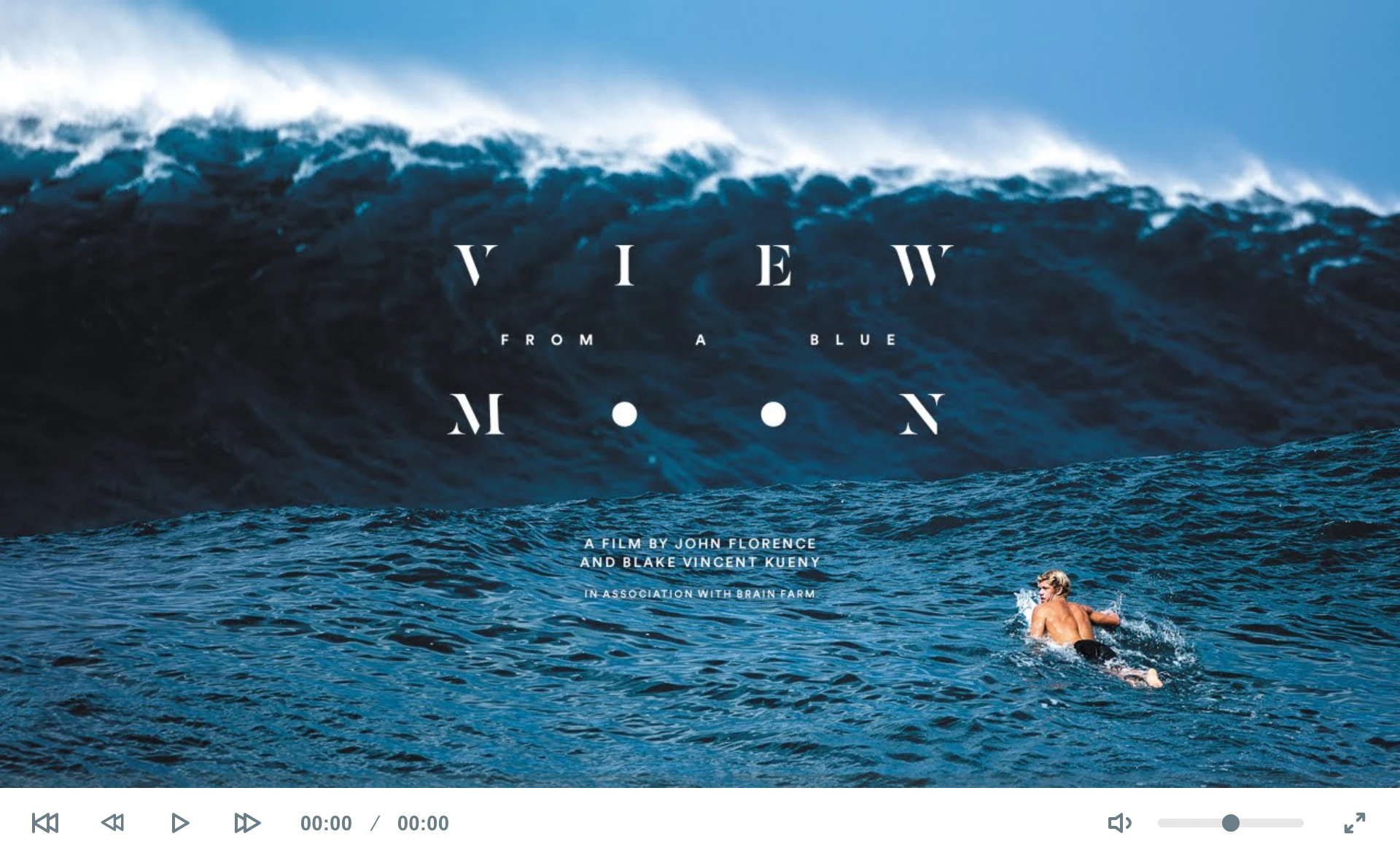
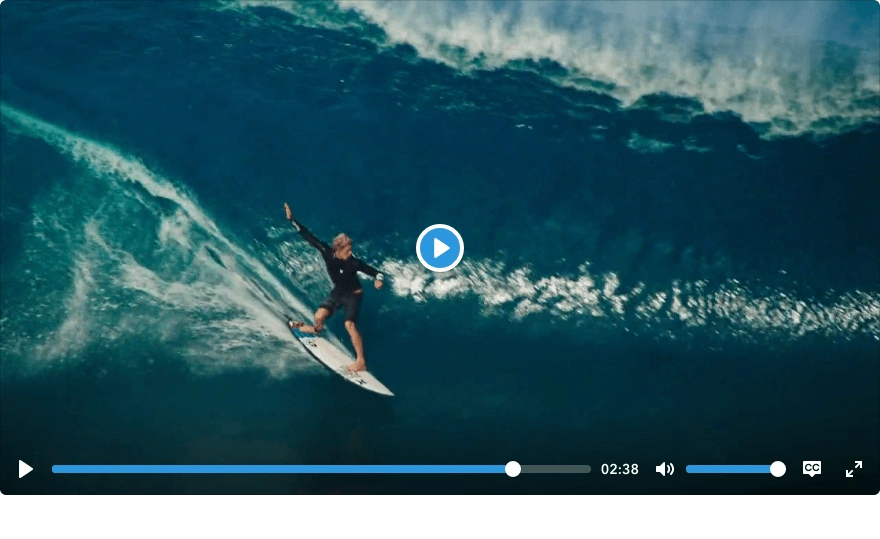
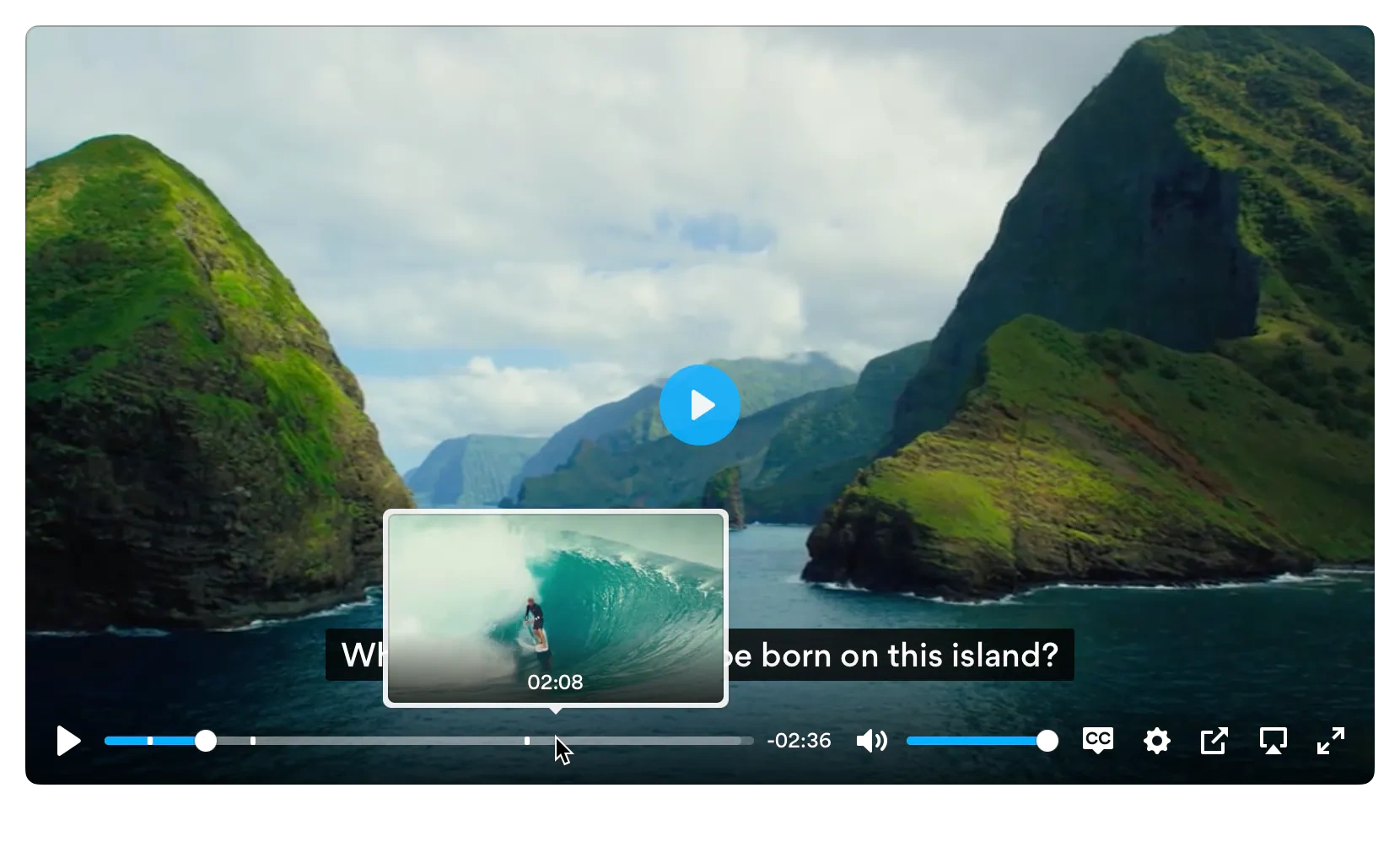
Comparison controls
Video.js gave me a chance to explore that direction. It also posed a broader question. A player can end up on almost any website, so how much personality should its design have?
The skins share the same attention to detail, but make different tradeoffs between visual character, fitting into an existing design, and browser compatibility. Default is deliberately distinctive. Neutral is quieter and designed to fit into more surroundings. Compat takes that restraint further, with browser compatibility guiding its design. Which approach makes sense depends on the product you’re building.
The comparison below also includes Scaffold: functional controls with minimal styling, intended as a starting point for your own skin. It gives you a foundation to restyle when you want to take the design in your own direction.
Select an item to view it in full. Moving focus into an item also reveals it.
Comparison controls
Default: A little opinionated
I wanted Default to stand out. Video players share a lot of familiar visual conventions, and there’s good reason for that: people should recognize the controls without having to learn how to use them. But there was still room to give Video.js its own character.
The frosted glass treatment was something I’d wanted to try for a while. Backdrop blur lets the controls retain a connection to the video underneath, while giving them a surface of their own. I paired that with the exaggerated border radii that have become more common in interface design.
Apple’s Liquid Glass was an influence too. For this version, though, I kept the treatment to frosted glass. More ambitious glass effects brought practical concerns around bundle size, battery life, cross-origin video, and browser compatibility that I wasn’t comfortable taking on. I’m still warming to it myself: in some applications it looks great, while in others I find the controls harder to read.
I was constantly refining that surface. Getting the blur in place was only the beginning. The borders and shadows needed attention too: enough definition to give the controls shape, without making them feel heavy.
The balance between backdrop-filter blur and background opacity took some tuning. Too transparent and the video competes with the controls; too opaque and the glass starts to feel like a solid panel. I wanted enough of the image to come through to give the surface its character, while keeping the controls easy to read.



Neutral: Finding a quieter direction
Neutral took a few iterations to find its direction. An early exploration had a two-row layout, darker stone grays, and an amber progress indicator that picked up on the retro Video.js branding.
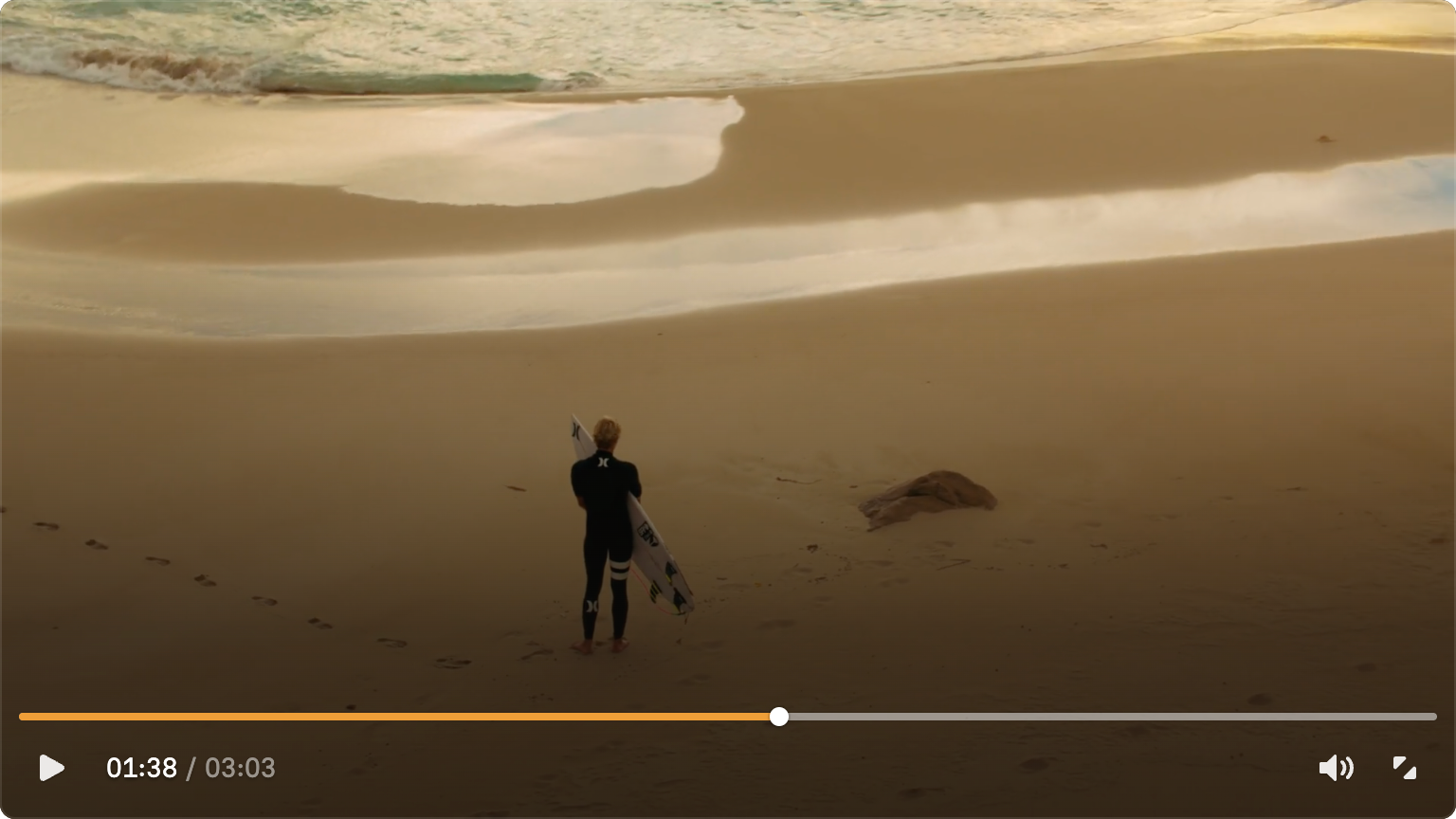
Through the team’s feedback, we moved toward an alternative with much less visual presence. Default already had a strong personality. A quieter skin would give people another useful option for their own sites and applications.
I took inspiration from the players on the Sora 2 announcement page and Linear’s careers site. The appealing part was how little chrome there was: a gradient rising from the bottom, with controls sitting directly over it.
That became the direction for Neutral. It uses a more traditional gradient backdrop, with no surrounding chrome around the controls and slightly thinner icons. The intention is for it to feel comfortable in a wider range of designs.
Compat: Letting compatibility guide the design
Compat starts from a similar direction to Neutral, with simpler styling to support a wider range of browsers.
It uses no backdrop filters, and its theme uses plain rgb() colors. In the video skin, popovers use black at 85% opacity instead of a frosted surface. That gives menus a near-opaque background without depending on blur to separate them from the video.
Design touches across the skins
Across the skins, I paid attention to how shapes fit together, how controls stay readable, and how movement responds to interaction. These are habits I’ve carried through my interface work, often without writing down the reasoning. The visual treatment varies between skins, but the underlying considerations stay the same.
Shapes and surfaces
For nested corners, or concentric radii, I start with outer radius = inner radius + padding. Giving both shapes the same radius can make the spacing around the corners look uneven. I also use layered, low-opacity box-shadow values to provide a fine edge and softer depth.
For a player, those edges sit over a changing image. A treatment that looks balanced over one frame can disappear or become too prominent over another. I want borders and shadows to help define the controls without competing with the video.
Letting the content influence the color
I rely on transparency a lot in the player. For subtle surfaces and edges, I’ll often use white or black at 10% opacity rather than a solid gray. That lets the video underneath contribute to the resulting color: white gently lightens what’s behind it, while black darkens it.
It helps the UI feel connected to the content. The same translucent treatment can pick up the warmth of one scene and the cooler tones of another, without me choosing a separate color for either. I’m defining how the UI sits over the image, and leaving some of its appearance to the image itself. The frosted surface example above shows how the same treatment picks up different colors from the content.
In CSS, that might mean oklch(1 0 0 / 0.1) for a background, border, or shadow. I apply the transparency to the color, rather than using opacity on the element, so the icons and text can keep their own contrast. Ten percent is a useful starting point for subtle details; surfaces that need to support readable controls may need more opacity.
The skins also respond to prefers-reduced-transparency: reduce and prefers-contrast: more. For either preference, the frosted surfaces switch to a solid background and the backdrop blur is removed. That gives people who need it a steadier background for the controls, without the changing video showing through.
Controls and typography
Looking at other players helped establish a direction, but there were details I wanted to handle differently.
One example was the seek slider. The player on the Sora 2 announcement page had no visible track, leaving you to guess where to click. I liked the simplicity of the player, but wanted to keep a clearer indication of where seeking was possible.
The icons went through a similar process. I tried outline versions, but play, pause, and volume didn’t feel right. I also experimented with smaller icons to distinguish the quieter skin, then increased them following feedback.
Those experiments helped clarify how much difference the skins needed. Their overall treatment already did a lot of the work. The surfaces, spacing, and amount of chrome could give each skin its character while the controls remained familiar.
Icon alignment needs an eye for visual balance too. A play triangle can look off-center even when its SVG box is perfectly centered in the button. A small optical adjustment can make it sit more comfortably alongside pause and the other controls. Matching the boxes is only part of getting an icon set to feel consistent. The example below uses Compat’s play icon to show the difference between geometric and optical centering.
For a player’s time display, font-variant-numeric: tabular-nums gives digits equal widths when the font supports it, so the text doesn’t shuffle around as the seconds change. It’s most noticeable when it’s missing.
Proportional numerals
Tabular numerals
Motion and transitions
The menu transitions carry some of Plyr’s influence too.
Plyr’s transitions took a lot of work to get right. CSS features such as interpolate-size: allow-keywords, which the skins now use for transitions involving intrinsic sizes such as auto, weren’t available then. I built a way to snapshot the menu’s end state, then transition to it.
Subtle transitions are worthwhile: opening a menu should feel connected to the control that opened it, and moving through it should feel smooth. The movement doesn’t need to draw much attention to itself.
transform-origin sets the point around which a transform happens. When a menu scales into view, an origin aligned with its trigger helps it feel as though it’s emerging from that control. For a menu that opens above a button at the player’s right edge, transform-origin: bottom right illustrates the idea. The origin needs to follow the actual placement if the menu moves. That gives the movement a spatial relationship.
Interruptions matter too. Someone can close a menu before it finishes opening, and the movement needs to respond to that. CSS transitions can re-target from the current appearance as state changes. A fixed keyframe sequence needs additional handling to do that. Getting those interruptions right is part of making a transition feel natural.
Closing a menu also doesn’t need to attract as much attention as opening it. A restrained exit lets it get out of the way quickly, especially when someone is returning to the video. The opening and closing treatments don’t have to mirror each other exactly.
For Video.js, that polish sits alongside the visual styling. The shape of a menu, its surface, and the way it appears all contribute to how it feels to use.
Fitting the available space
A player has to work beyond the frame and size used to present it. Adding captions, settings, picture-in-picture, and casting puts pressure on a layout that might look spacious with just a play button and time slider.
The controls need to adapt to the available space. In Default, the fullscreen, picture-in-picture, and casting buttons move to the top-right at narrower widths, giving the seek track more room. The example below lets you resize a working player to see that change.
Customization and contrast
From the start, I wanted the skins to fit naturally into the sites using them.
Typography was a good example. Inheriting the document’s font would leave the controls at the mercy of whatever typeface someone had chosen for their site. Instead, the skins have their own sans-serif stack, with Inter first and the operating system’s UI font as the fallback. I like how Inter looks, but Video.js doesn’t download it: it’s only used if the site already loads it, or it’s installed locally and the browser allows access to it.
Those defaults are easy to change. The accent color, player corner radius, and font family can all be set through CSS custom properties: --media-accent-color, --media-border-radius, and --media-font-family. You can even set the font family to inherit if that suits your site. The skin customization guide covers these options.
Accent colors are another example. Letting someone use their own brand color means designing for colors I haven’t chosen myself. White text or icons might work over a dark blue accent, then become difficult to see when someone switches it to yellow.
Where the accent is used as a background, contrast-color() lets the browser choose black or white for the foreground, depending on which has greater contrast with that color. It keeps the foreground tied to the chosen accent instead of assuming the same color will work for every brand. That’s the kind of detail I want the skin to handle so customization stays simple.
There’s still a distinction between contrast against the accent and contrast against the rest of the player. The function handles the foreground/background pair supplied to it; it doesn’t assess the whole interface or the video behind a translucent surface. Browsers without contrast-color() fall back to the theme’s text color.
Set --media-accent-text-color explicitly when the theme’s fallback text color doesn’t suit a custom accent.
contrast-color() chooses black or white for the button’s icon.Balancing those defaults against customization has been on my mind throughout. I want the skins to look considered out of the box, while recognizing that they’ll become part of someone else’s product.
Accessibility as part of the design
Accessibility influences the decisions about color, spacing, motion, and interaction throughout the skins.
Keyboard focus needs to be easy to find over a changing video, and opening a menu needs to work just as well from the keyboard as it does with a pointer. The controls also need accessible names and states: a recognizable icon helps visually, while its label tells a screen reader what the button does. A smaller icon can still sit inside a generous button, so the quieter styling doesn’t have to make the controls harder to hit.
The transitions follow prefers-reduced-motion: reduce too. The skins remove the scaling, sliding, and blur used during transitions and make menu transitions immediate. The relationship between a menu and its trigger still needs to be clear when that movement is gone.
The transparency preferences above and the accent-color contrast handling are part of the same thinking. In forced-colors mode, the skins also use system colors for menu surfaces and focus indicators. Those choices help the controls adapt to the person using them, as well as to the site they’re embedded in.
Choosing a skin
Default is the direction I’d been wanting to explore for a while. Neutral and Compat grew around different needs, and Scaffold gives you a starting point for your own design.
Choose a skin and get started with Video.js, or explore the skin documentation to see how packaged skins and editable source fit into your project.